Setting modeling parameters
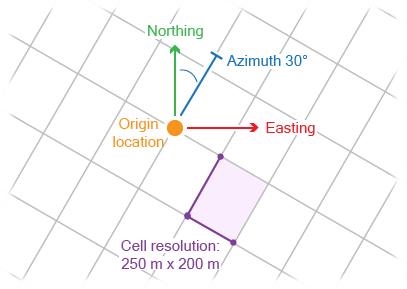
Model area example (top view) click to enlarge
On the Set Modeling Parameters form (Model > Faults > Set Modeling Parameters), you need to specify the modeling parameters for your fault model: origin location, orientation, and resolution. For best results the modeling parameters should be in line with the resolution, location and orientation of the anticipated JewelGrid that you create with the Structural Modeling workflow.
The Modeling Parameters define an indefinite modeling grid, which is used as follows in the subsequent modeling steps:
- When fault data is added with the Assign data form. There, you can resample your data (recommended) to the modeling parameters you define now. This will create a regularly meshed fault model (with rearranged nodes and triangles) which will typically lead to higher quality results.
- During the detection ('preview') of fault intersections when performing Solve fault intersections: the actual solving ('apply') of the detected fault intersections is greatly enhanced when your data is resampled (previous bullet point).
- During Validating your fault model: the modeling parameters determine the resolution on the basis of which the validation is performed.
Furthermore, when you include a fault model in your structural model, the horizons, along with any fault cutoff line edits, will inherit the modeling parameters you set here, so that the structural model is created with the same parameter settings. As the modeling parameters essentially determine the resolution of your 3D structural model, make sure to set reasonable values.
On the form, you have two options to set the fault modeling parameters:
- You can take existing modeling parameters from various sources by selecting one of the following tabs on the form: Seismic Survey, (another) Fault Model, Area, 2D Grid. If you select one of these sources, the modeling parameters in the lower part of the form are automatically filled in, based on the parameters of the selected source.
To assist you in constraining the modeling parameter without a context to a seismic survey, it is recommended to use the Area tool. With this tool, you can interactively create an area box. The area helps you with following tasks:
- Optimally rotate the grid to align with your data and structural features. This can be done interactively in the 3D View (use the space key and left mouse button).
- Determine an appropriate lateral setting. The area graphically shows the resolution and previews the number of lateral data points.
- You can manually set your preferred modeling parameters by selecting the Manual tab; the modeling parameters at the lower part of the form are now available for editing. In the Location and Orientation section, specify the Easting and Northing locations of the origin point, its TVDSS position and Azimuth(GN) (angle with the Northing direction) of the modeling grid. In the Resolution section, specify the sampling steps in the three directions by entering values for X increment, Y increment and Z increment.
When using a 2D grid, use the first drop-down list to select the model containing the 2D grid you would like to derive the parameters from, then select the 2D grid in the second drop-down list.
If you select one of the sources, you can optionally deselect the Optimize XYZ increments for modeling. Keeping this option checked will optimize ('coarsen') the resolution of the modeling parameters according to the following rule:
- If the initial increment is < 66.6 m and you check the box, an integer multiplier is calculated to make the resolution as close to 100 m as possible. This 'coarsens' your resolution. For example, if your initial resolution is 20 m, the optimized resolution will be 100 m (the multiplier is 5). If your initial resolution is 30 m, the optimized resolution will be 90 m (the multiplier is 3).
- If the initial increment is ≥ 66.6 m and you check the box, then the optimize option will not do anything. For example, if your initial resolution is 70 m, it will stay 70 m; if your initial resolution is 250 m, it will stay 250 m, etc.
These rules for the coarsening aim to produce modeling parameters, which are multiples of the original resolution, so that the resampling produces higher quality results.
Once you have made a selection, click Apply to use the modeling parameters and keep the form open, or click OK to use the modeling parameters, close the form and proceed to the next step, Assigning data.